A common problem people run into when using a purely server-based solution is that
there is no way to create an
accurate progress indicator for uploads. However, with the help of
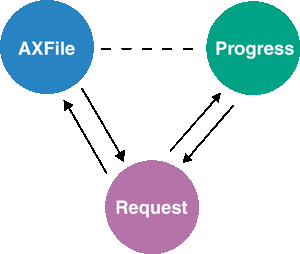
In using SA-XFile, there are three objects involved:
| AXFile | The explorer-like file selection control that
includes all the objects that are part of |
| XFRequest | The non-visual object that actually performs the transfer. |
| Progress | The control that displays the progress of the transfer. |
The Progress control displays the status of the transfer. We ensure that the Progress control is displayed before the transfer starts. Otherwise, in the multi-threaded environment of Internet Explorer, a transfer could complete before the progress window is displayed, yielding an inconsistent user experience.
Let discuss a how to create a progress window using SA-XFile.
You need two HTML files for these examples: a page that contains AXFile and a progress page (AXFFileProgress.htm like in the last example).
The following code is an example of the page containing AXFile:
<HTML>
<HEAD>
<TITLE></TITLE>
</HEAD>
<BODY>
<P><STRONG><FONT color=black size=5>SA-AXFile Multi-File Preset Upload Sample</FONT></STRONG></P>
<P>
<SCRIPT>

function startupload()
{
    winstyle = "height=300,width=400,status=no,toolbar=no,menubar=no,location=no";
    window.open("AXFFileProgress.htm",null,winstyle);
}

</SCRIPT>

<OBJECT classid=CLSID:230C3D02-DA27-11D2-8612-00A0C93EEA3C id=AXFFile style="LEFT: 0px; TOP: 0px">
</OBJECT>
</P>
<P><INPUT id=button1 name=button1 type=button value="Start Upload" onclick = "startupload()"></P>

<script language="vbs">
    set xfile = AXFFile.XFrequest
    XFile.Server = "localhost""
    XFile.ObjectName = "/safileupsamples/formresp2.asp"
    AXFFile.AddFile "c:\boot.ini"
    AXFFile.AddFile "c:\autoexec.bat"
</script>

</BODY>
</HTML>
This is very similar to our multiple file download example. The StartUpload function is called from the button created later on in the script. Note that in this example there is a different ClassID for the object since it is using a different ActiveX control.
The last script section should also look rather familiar. The major difference in this case is that the AddFile argument only requires one argument; the location and naming of the files to be uploaded are handled by FormResp.asp.
AXFFileProgress.htm starts the upload process. We are calling the SA-XFile's Progress object, in order to create a display properties of the transfer. Here is the major section of AXFFileProgress.htm.
.....
<HEAD>
<SCRIPT language = vbs>
sub Callback()

	Document.All("AXFFileProgress").XFRequestStream =  Opener.Document.All("AXFFileDownload").XFRequestStream
	Document.All("AXFFileProgress").ShowProgress
	Opener.Document.All("AXFFileDownload").Start
	window.close()
End sub

</SCRIPT>
</HEAD>
<BODY OnLoad="Callback()">
<OBJECT ID="AXFFileProgress" CLASSID="CLSID:C3EAF164-E06A-11D2-B5C9-0050041B7FF6"></OBJECT>
<SCRIPT language = vbs>
sub AXFFileProgress_TransferComplete()
	MsgBox "Transfer completed"
end sub
</SCRIPT>
....
The sections of this file work as follows:
With SA-JFile, a progress indicator is built into the component. You would only need to start the upload process in order to display the progress window. There is no extra scripting needed, the progress window will close on it's own. For the rest of your page, you would use SA-JFile as you would for any upload.
| Previous Page | Next Page |